
123 lines
5.7 KiB
Markdown
123 lines
5.7 KiB
Markdown
This guide will show you how to setup the necessary stuff to be able to use your own authentication system and database for accounts. please do note that you will have to enter the same configurations for each device.
|
|
|
|
**This Guide Assumes You're Doing everything On Your Local Machine. This is still fully possible on a VPS Though.**
|
|
|
|
### Required:
|
|
|
|
- A Computer (this computer will be the one hosting the database)
|
|
- Firebase Account (Only Used For Authentication)
|
|
- [PocketBase](https://pocketbase.io) (App we use to manage The Database, Install This on the computer you want to host the database on)
|
|
- Domain (you can get one for free at [DigitalPlat](https://domain.digitalplat.org/))
|
|
|
|
### Step 1: Setup Firebase Authentication
|
|
|
|
Go to the [Firebase Console](https://console.firebase.google.com) and create a new project. then, on the left sidebar, click the **Build** section and select **Authentication**.
|
|
|
|
1. Click **Get Started**.
|
|
2. Go to the **Sign-in method** tab.
|
|
3. Select **Google** And **Email** and enable it.
|
|
4. Set your project support email and click **Save**.
|
|
|
|
### Step 1.1: Authorize The Domain
|
|
|
|
firebase by default makes you add trusted domains to connect to firebases authentication system, if your domain isnt on there, it wont allow you to login or signup.
|
|
|
|
1. In the **Authentication** section, go to the **Settings** tab.
|
|
2. Click **Authorized domains** in the left sub-menu.
|
|
3. Click **Add domain**.
|
|
4. Add your hosting domain (if you're still using the normal monochrome site, just add `monochrome.samidy.com`, or whatever mirror you like to use (eg. `monochrome.tf`). otherwise, if you're self hosting the website too, add your hosted domain).
|
|
- _Note: `localhost` is usually added by default for local testing. you likely wont have people abusing your system, so you can leave this in by default._
|
|
|
|
### Step 2: PocketBase Setup
|
|
|
|
1. download [PocketBase](https://pocketbase.io) and follow their setup guide.
|
|
2. make 2 collections: `DB_users` and `public_playlists`. do NOT use the normal "users" collection.
|
|
3. Add these fields to `DB_users`:
|
|
|
|
- name: `firebase_id` type: `Plain Text`
|
|
- name: `lastUpdated` type: `Number`
|
|
- name: `history` type: `JSON`
|
|
- name: `library` type: `JSON`
|
|
- name: `user_playlists` type: `JSON`
|
|
- name: `user_folders` type: `JSON`
|
|
- name: `deleted_playlists` type: `JSON`
|
|
|
|
4. Add these fields to `public_playlists`:
|
|
|
|
- name: `firebase_id` type: `Plain Text`
|
|
- name: `addedAt` type: `Number`
|
|
- name: `numberOfTracks` type: `Number`
|
|
- name: `OriginalId` type: `Plain Text`
|
|
- name: `publishedAt` type: `Number`
|
|
- name: `title` type: `Plain Text`
|
|
- name: `uid` type: `Plain Text`
|
|
- name: `uuid` type: `Plain Text`
|
|
- name: `tracks` type: `JSON`
|
|
- name: `image` type: `URL`
|
|
|
|
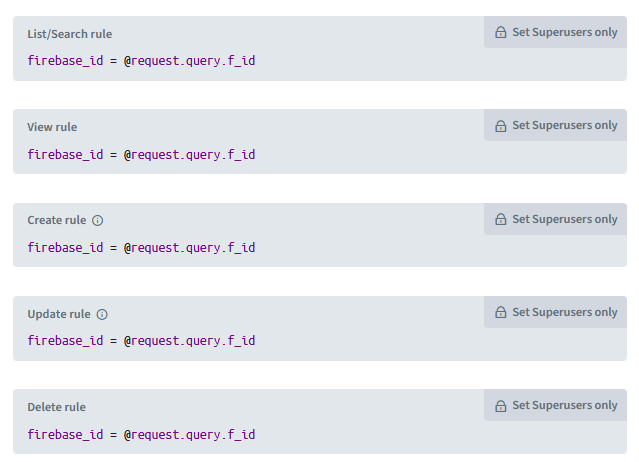
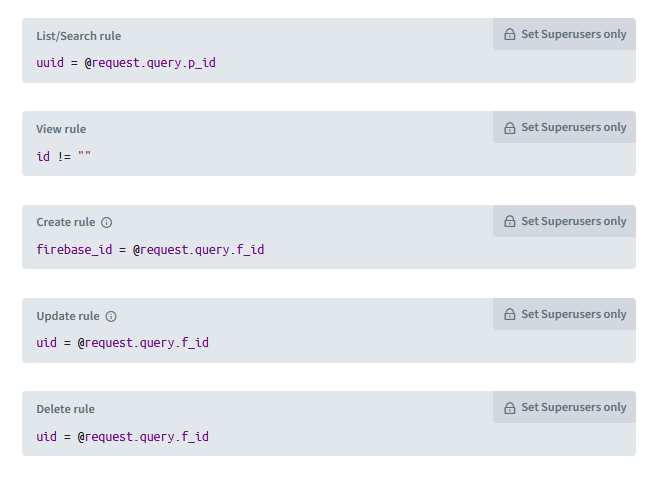
5. edit the `API Rules` for both `DB_users` and `public_playlists` to these:
|
|
|
|
#### `DB_users`
|
|
|
|
|
|
|
|
#### `public_playlists`
|
|
|
|
|
|
|
|
Now that you have setup collections, rules and fields, we can now work on putting them out on the internet.
|
|
|
|
### Step 3: Cloudflared
|
|
|
|
while you can use the usual `127.0.0.1` link pocketbase gives you, this is a local domain and you cant enter it on any other device, so it would practically be useless. to open this up, while we can port forward, this could be dangerous and attackers could use that as a vulnerability. to securely set this up, we are going to be using cloudflared.
|
|
|
|
1. Make an account at the [Cloudflare Dashboard](https://dash.cloudflare.com).
|
|
2. In the Left Sidebar, Click "Zero Trust".
|
|
3. Set Up Zero Trust, then in the left sidebar, Click "Networks" Then "connectors".
|
|
4. Select "Cloudflared".
|
|
5. Give Your Tunnel A Name (eg. `My very cool monochrome database wow im so cool`)
|
|
6. then, you will get a guide on how to install cloudflared and set it up for your machine.
|
|
7. You will get a window to setup hostnames, Note that you will require a valid domain as cloudflare doesnt allow `pages.dev` domains. you can get one for free at [DigitalPlat](https://domain.digitalplat.org/), but we will not show you how to set it up and how to connect it to cloudflare.
|
|
8. at the "Service" section for the setup hostnames window, select "HTTP" and input the URL for pocketbase (eg. `127.0.0.1:8090`).
|
|
after this, your database will be available at the chosen domain.
|
|
|
|
### Step 4: Getting Configurations
|
|
|
|
You are almost done, now you just need to get configurations so you can add them to monochrome.
|
|
|
|
first, get your authentication config:
|
|
|
|
1. Open Firebase Console and click on your project.
|
|
2. click the Gear Icon (⚙️) next to "Project Overview" and select **Project settings**.
|
|
3. In the **General** tab, scroll down to "Your apps" and click the **Web icon (`</>`)**.
|
|
4. Register the app (e.g., "Monochrome Auth").
|
|
5. You will see a `firebaseConfig` object. It looks like this:
|
|
|
|
```
|
|
const firebaseConfig = {
|
|
apiKey: 'AIzaSy...',
|
|
authDomain: 'your-project.firebaseapp.com',
|
|
databaseURL: 'https://your-project.firebaseio.com',
|
|
projectId: 'your-project',
|
|
storageBucket: 'your-project.appspot.com',
|
|
messagingSenderId: '...',
|
|
appId: '...',
|
|
};
|
|
```
|
|
|
|
6. **Copy only the part with the curly braces `{ ... }`**.
|
|
|
|
For The Database:
|
|
just copy the link for your database.
|
|
|
|
### Step 5: Linking with monochrome
|
|
|
|
now all you need to do is add your configurations in monochrome.
|
|
|
|
1. Go to settings in monochrome.
|
|
2. Click "ADVANCED: Custom Account Database"
|
|
3. in the database Config input window, input your database link.
|
|
4. in the authentication config input window, input the JSON object you got from firebase.
|
|
5. Click "Save"
|
|
|
|
Thats it! you now have setup a custom authentication system and database system. do note, on every device you wanna use your custom database on, you will have to repeat step 5 on the given device.
|